To photograph clothes to sell online, start with a clean garment, soft light and a steady phone or camera. Capture the front, back and important details. Then compare the photos with the actual item before editing or uploading. You can begin with equipment you already own.
A Quick-Start Clothing Photo Checklist
- Prepare the actual item. Check the care label before steaming or ironing. Remove lint and fasten closures as they should appear. Keep visible wear or damage visible in resale listings.
- Choose a simple setup. Put the garment beside a source of soft light and keep the background clear. Turn off room lights if they add a different colour cast.
- Take an overview. Include the whole garment, with room around the neckline, sleeves and hem. Keep the camera facing the centre of the garment rather than tilted sharply up or down.
- Complete the shot set. Take the back, useful side views and close-ups of texture, labels, fastenings and condition. Keep a note of the item or SKU so files do not get mixed.
- Inspect before packing away. Zoom into the photos. Retake blurry views now, while the lighting and garment are still set up.
- Export a copy. Keep the original. Check the destination's image rules and final thumbnail before publishing.
Choose the Method That Shows the Garment Clearly
Choose the presentation around the question the buyer needs answered. A flat lay can show a print clearly, while an on-person view shows how the garment sits on that person. Neither replaces measurements or close-ups.
| Method | Useful for | Check before using it |
|---|---|---|
| Flat lay | Prints, front/back overviews and a simple home setup | Folds and camera tilt can hide shape. Keep the camera parallel to the surface. |
| Hanger | Quick hanging views of shirts, jackets and dresses | Use a suitable hanger so the shoulders are not pulled out of shape. |
| On a person | Showing drape, length and movement on that wearer | Do not imply that the fit will be identical on every buyer. |
| Mannequin / ghost effect | A shaped product view without a visible person | Check proportions and visible interior details against the original garment. |
For a surface-based setup, see our flat lay photography guide. For the editing workflow, see the ghost mannequin photography guide or PixFocal AI ghost mannequin generator.
Set Up and Photograph the Garment
Use light you can repeat
Soft window light is a workable starting point. Place a white board opposite the window if one side looks too dark. If you use lamps, keep their colour consistent. Take a test photo of the whole garment: bright shoulders and a dark hem mean the light needs adjustment.
Once the test looks right, mark the garment and camera positions. If daylight changes, take another test instead of assuming the earlier settings still work. The product photography lighting guide covers more setup options.
Style without changing what you sell
Smooth avoidable wrinkles without pulling the garment into a different shape. Use an appropriately sized support. Avoid pinning clothing so tightly that the image suggests a slimmer cut than the item has. For trousers, check that the legs are not spread in a way that changes the apparent length or width.
Use a repeatable shot list
- Front and back: keep the camera distance and garment scale similar.
- Useful side view: show depth or a feature not visible from the front.
- Fabric and construction: photograph the weave, lining, seam or fastening that matters to the item.
- Label and measurements: show readable labels and supply measurements in the listing. A label photo does not replace your measurement method.
- Condition: include an overview and close-up of a mark, hole or repair when selling a used garment.
This is a working checklist, not a fixed photo count or a promise of higher conversion. Add a view when it answers a real buyer question.
How to Photograph Clothes with a Phone
Clean the lens and use the main camera as a starting point. Step back until the garment fits without clipping the edges. Avoid relying on digital zoom to frame a small detail; take a separate close-up and check that it is in focus.
Support the phone on a stable mount or surface. Tap the garment to set focus, then adjust exposure if the light or dark fabric loses detail. If your camera offers exposure and white-balance locks, use them for a consistent series. Avoid beauty filters and background-blur effects that soften garment edges.
With a separate camera, start with settings that keep the whole garment sharp, then inspect a test frame. There is no single aperture or shutter speed that works for every lens, light and shooting distance. A steady setup lets you judge the photo rather than buy new equipment to solve an unmeasured problem.
Check Accuracy Before Editing or Publishing
- Colour: compare the image with the garment under neutral light. Do not make a photo cooler or more saturated just because it looks more dramatic.
- Proportions: check the full silhouette, sleeve length and hem. Do not reshape the garment to fit a template.
- Details: confirm the number and position of buttons, pockets, seams, prints and labels. Do not remove a real condition issue during cleanup.
- Background: clean distractions without erasing fine edges or transparent fabric. A white background is not a universal marketplace requirement.
- Sharpness: look at fabric texture in the exported file, not just the small camera preview. Retake a blurred original instead of treating more pixels as more detail.
If you use AI editing, compare the result with every relevant original view. A plausible-looking photo can still change a neckline, hem or print. Keep original condition photos for resale and check the platform's rules before using generated imagery.
Before & After: Ghost Mannequin Effect with PixFocal AI
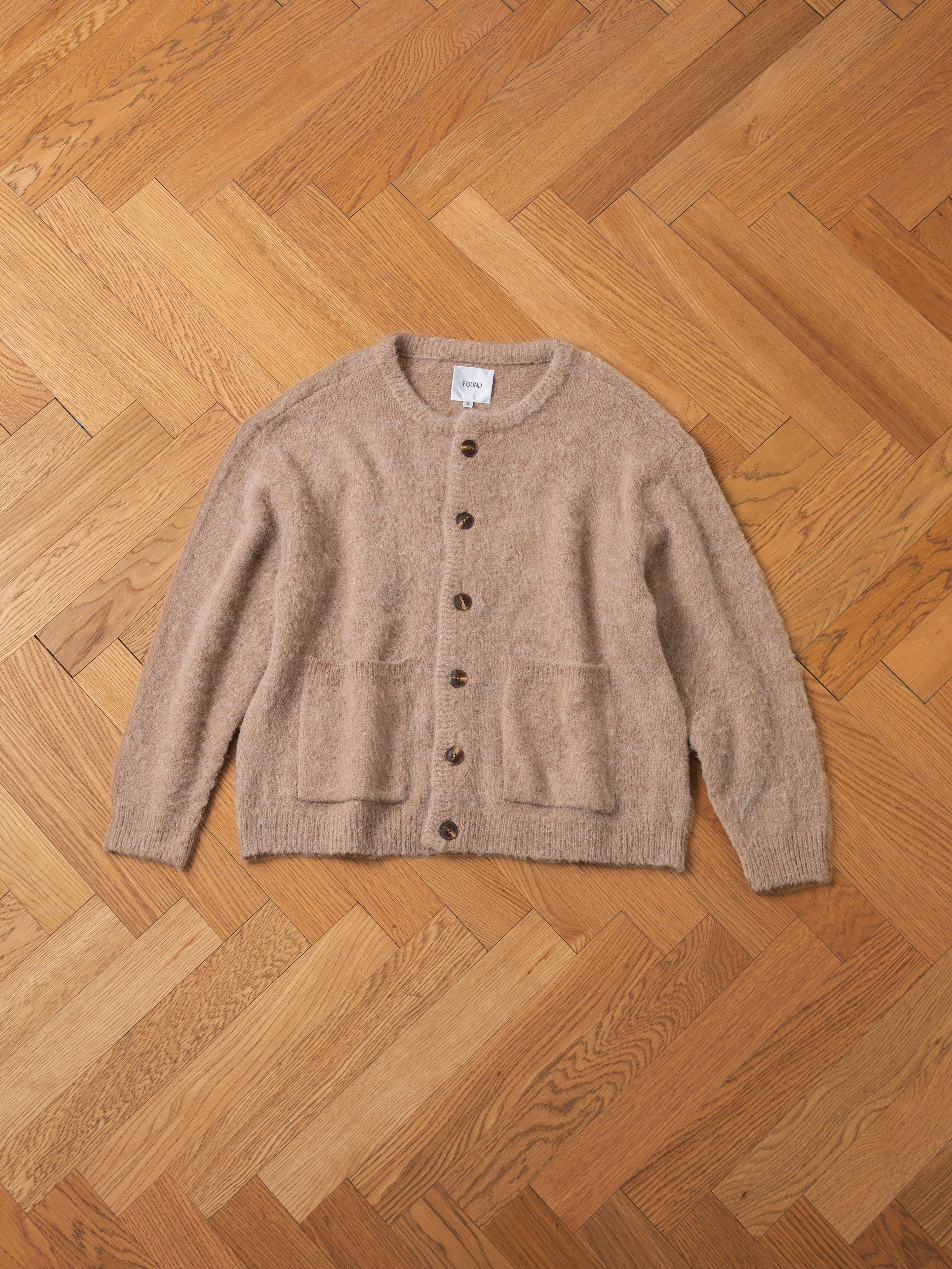
Before: Clothing on mannequin
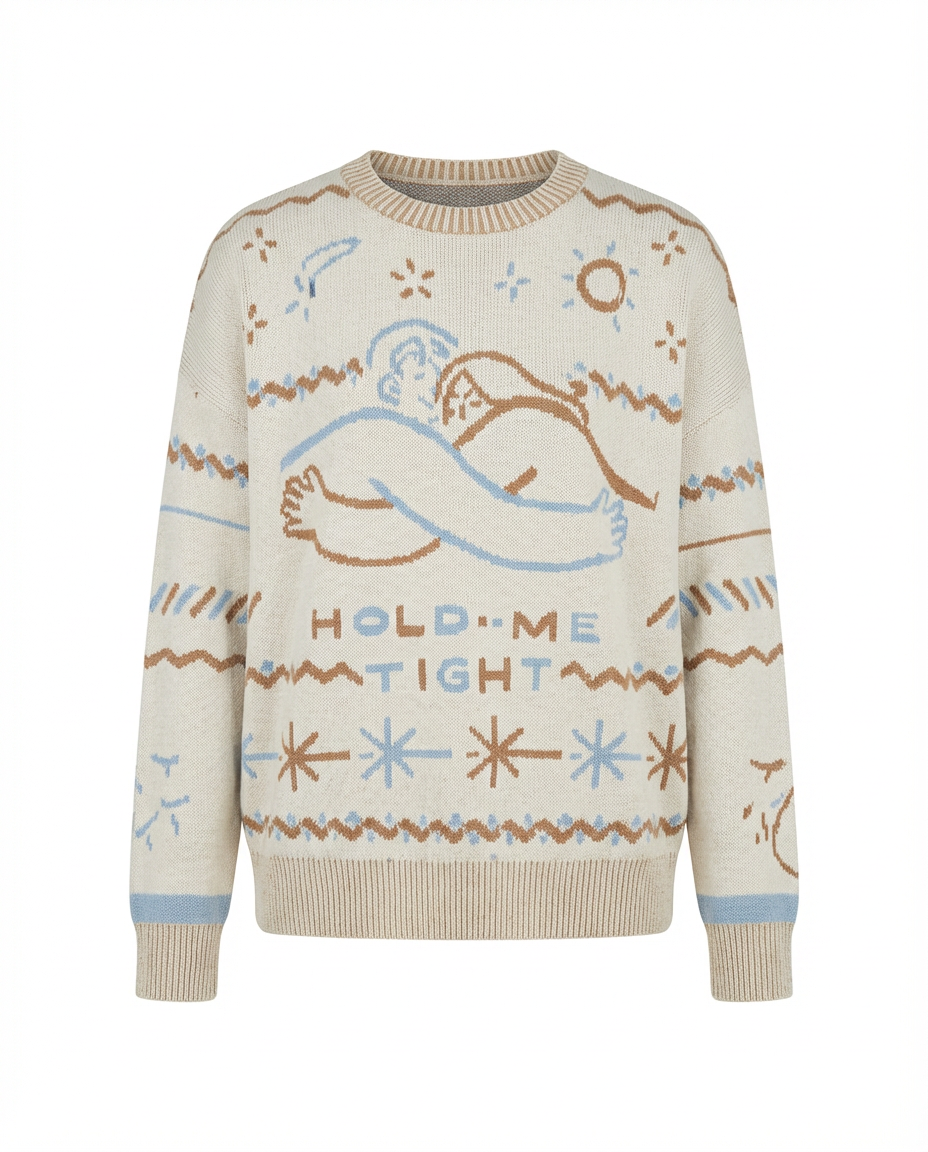
After: Ghost mannequin effect by PixFocal
Prepare the Upload for Your Marketplace
Keep a full-resolution original and make separate exports for each destination. These links were checked September 13, 2026. Technical specifications can change, and a file that passes a size check can still fail a category or content rule.
- Shopify: use the Shopify product image size guide and official product-media reference. Check both file weight and dimensions, then inspect the crop in your actual theme.
- Etsy: Etsy recommends at least 2000px on each side; it does not require one universal thumbnail ratio. Use our Etsy image checker and crop preview before making the final adjustment in Etsy.
- Amazon: read Amazon's product-photo guidance and the rules for your clothing category in Seller Central before choosing a main-image method. Do not assume a clean background alone makes an image compliant.
- eBay: the eBay picture policy requires photos that represent the actual item and excludes stock photos for used, damaged or defective items. Keep condition evidence clear; do not edit wear out of a resale photo.
Before publishing, inspect the listing on your phone as well as your larger screen. Can you identify the item from the thumbnail? Can you see the whole garment and read the important details? If not, return to the original photo and adjust the export.